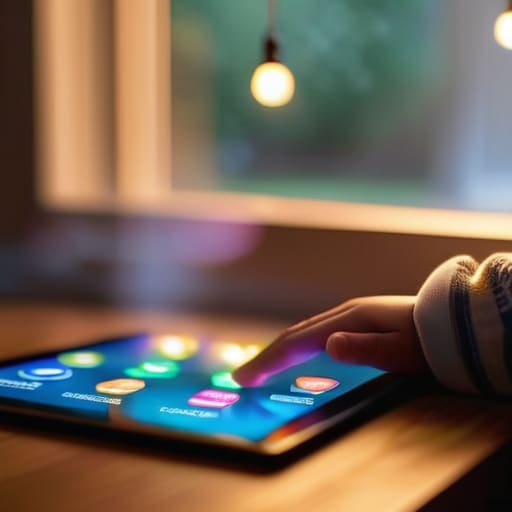
How to Set Up Parental Controls for Your Kids
I remember sitting on my living room floor last Tuesday, surrounded by three different tablets, a gaming console, and a laptop, feeling like I was trying to untangle a massive ball of knotted yarn. My youngest had just discovered a YouTube rabbit hole that was definitely not age-appropriate, and my immediate instinct wasn’t to lecture, but to find a way to automate the boundaries. Most tech blogs make it sound like you need a PhD in cybersecurity to figure out how to set up parental controls, but honestly? That’s just unnecessary noise. We aren’t trying to build a digital fortress; we’re just trying to make sure the pieces of our family’s digital life fit together safely.
I’m not here to sell you on some expensive, bloated subscription service that promises to solve everything with one click. Instead, I want to share the practical, no-nonsense shortcuts I’ve gathered from years of tinkering with systems and managing my own household. I’ll walk you through the most efficient ways to handle the settings on the devices you already own, so you can stop playing digital firefighter and get back to actually enjoying your time together.
Table of Contents
Restricting Inappropriate Content With Ease

Think of restricting inappropriate content like putting a filter on a coffee machine; you aren’t trying to stop the coffee from flowing, you’re just making sure you only get the good stuff. Most modern devices and search engines have built-in “SafeSearch” modes that act as a first line of defense. I always recommend starting at the source—on the browsers and apps your kids use most. It’s a quick win that significantly boosts internet safety for minors without you having to hover over their shoulder every five minutes.
If you want to level up your strategy, I’ve found that configuring router security settings is a total game-changer. Instead of playing whack-a-mole with every individual tablet or phone in the house, you can implement filters at the Wi-Fi level. This creates a digital “perimeter” for your entire home. It’s not about being the “tech police,” but rather about building a foundation for digital wellbeing for children so they can explore the vastness of the web within a safe, curated environment. It’s just one more piece of the puzzle falling into place.
Configuring Router Security Settings for Safety

Now, let’s step away from individual devices for a second and look at the “brain” of your entire home network: the router. If individual device settings are like putting a lock on a single bedroom door, configuring router security settings is like securing the front gate to the whole estate. By managing things at the source, you create a foundational layer of protection that covers every gadget in the house, from the iPad to that smart TV in the guest room. It’s a bit like building a digital perimeter that keeps the “bad stuff” from even reaching your kids’ screens in the first place.
Most modern routers come with built-in tools that make this process surprisingly intuitive—no engineering degree required! You can often set up specific schedules to automatically cut off internet access at bedtime, which is a total game-changer for managing device usage without having to play the “go to sleep” tug-of-war every single night. I like to think of it as setting a gentle, automated boundary that helps everyone maintain a healthier relationship with their screens. It’s just one more piece of the puzzle in building a safer, more intentional digital environment for your family.
Five Quick Wins to Level Up Your Family's Digital Safety
- Don’t try to do everything at once; pick one device or one app to start with so you don’t feel overwhelmed by the tech side of things.
- Use “time limits” as a gentle nudge rather than a hard wall—think of it like a digital bedtime that helps kids wind down naturally.
- Leverage the built-in tools on your kids’ devices first, because most smartphones and tablets already have some pretty stellar settings waiting to be toggled on.
- Make it a conversation starter; explain the “why” behind the restrictions so they see these settings as a safety net rather than a punishment.
- Set a recurring “tech check” on your own calendar to review the settings once a month, because as kids grow, their digital needs change too.
Pieces of the Puzzle: Your Quick Safety Checklist
Think of parental controls as a safety net, not a cage; the goal is to build a digital environment where your kids can explore without accidentally tripping over something scary.
Don’t forget the hardware! Layering your security by combining device-level settings with your router’s built-in protections creates a much stronger shield for your home network.
Stay curious and keep adjusting; as your kids grow and their tech habits change, treat your digital boundaries like a living system that evolves right along with them.
## Building a Digital Safety Net
“Think of parental controls not as a digital fence to keep your kids in, but as a set of guardrails on a winding road—they’re there to help your family navigate the twists and turns of the internet without veering off course.”
Jordan Bennett
Piecing the Digital Puzzle Together

We’ve covered a lot of ground today, from filtering out the messy bits of the internet to hardening your home network with those router settings. I know it can feel like you’re trying to assemble a 1,000-piece puzzle without the picture on the box, but remember that these tools—the content filters and the security protocols—are just the building blocks of a safer home. By taking these small, intentional steps, you aren’t just clicking buttons in a settings menu; you are actively constructing a digital perimeter that allows your family to explore, learn, and play without stumbling into the dark corners of the web.
At the end of the day, technology will always evolve, and new challenges will pop up in your little notebook just like they do in mine. But don’t let the complexity overwhelm you. The goal isn’t to build an impenetrable fortress that keeps your kids in the dark, but rather to create a safe playground where they can grow with confidence. Think of these parental controls as a compass, not a cage. Keep tweaking, keep learning, and most importantly, keep the conversation open with your kids. You’ve got this, and I’m rooting for you every step of the way!
Frequently Asked Questions
Is there a way to set up these controls without making my kids feel like I'm spying on them?
I totally get that—it’s a fine line between being a protector and feeling like a digital detective! I like to frame it as “setting up guardrails” rather than “installing cameras.” Instead of focusing on surveillance, talk to them about digital safety and why these boundaries exist. When you approach it as a collaborative way to navigate the web safely together, it feels less like spying and more like a shared toolkit for growing up online.
How do I manage screen time limits if my kids are using different devices like iPads versus gaming consoles?
Think of managing different devices like orchestrating a small band; they all play different instruments, but they need to stay in the same rhythm. For iPads, Apple’s Screen Time is your best friend, but for consoles like PlayStation or Xbox, you’ll want to dive into their specific family management apps. It feels a bit fragmented at first, but once you sync those boundaries, you’ll have a unified system that keeps everyone on track!
If I change my router settings, will it accidentally kick my smart home devices or my own work laptop offline?
That is such a valid concern—honestly, I’ve accidentally knocked my own smart coffee maker offline more times than I’d like to admit! Generally, if you’re just tweaking security filters or content restrictions, your devices should stay connected just fine. However, if you decide to change your Wi-Fi name (SSID) or password, then yes, everything will lose its connection. Think of it like changing the locks on your front door; you’ll need to give your devices the new key!