How to Extend Your Laptop’s Battery Life
We’ve all been there: you’re sitting in that one cozy corner of the coffee shop, the perfect lighting, the perfect latte, and then—bam—the dreaded low-battery notification flashes across your screen like a jump scare in a horror movie. I remember one afternoon during my software engineering days when I was deep in a coding sprint, only to realize I’d left my charger in my desk drawer at the office. I spent the next hour frantically dimming my screen to the point of squinting, desperately searching for how to extend laptop battery life just to finish a single function. It’s incredibly frustrating when your tech feels like it’s working against your flow rather than supporting it.
I’m not here to sell you on some expensive, bulky external power bank or a “miracle” software that promises the moon. Instead, I want to help you piece together a more efficient workflow using the tools you already have. I’m going to share the practical, no-nonsense tweaks I’ve learned from years of tinkering with systems and optimizing my own daily routines. We’re going to look at the small, impactful adjustments that actually move the needle, so you can stop hunting for outlets and get back to doing what you actually love.
Table of Contents
Simple Ways to Reduce Screen Brightness Settings
If there’s one thing I learned back when I was grinding away as a dev, it’s that your screen is essentially a tiny, glowing energy vacuum. It’s often the biggest culprit in draining your juice. I like to think of your brightness level as a faucet; if you leave it running at full blast when you’re just sipping a coffee, you’re essentially letting your productivity leak away. One of the easiest ways to stop that leak is to manually reduce screen brightness settings to a level that is comfortable for your eyes but doesn’t overwork the hardware.
I’m a big fan of setting up automation here so you don’t have to think about it. On a Mac, you can dive into your system preferences for some quick MacBook battery saving tips, like enabling “Slightly dim the display while on battery power.” If you’re a Windows user, exploring your laptop power management settings to auto-adjust brightness based on ambient light can be a total game-changer. It’s a small, seamless tweak that helps you piece together a much longer session without constantly hunting for a wall outlet.
Smart Tactics to Manage Background Applications
Think of your laptop like a busy kitchen during a dinner rush. Even if you aren’t actively cooking a specific dish, if you have ten different chefs running around chopping onions, boiling water, and preheating ovens in the background, you’re going to burn through your fuel incredibly fast. Digital “chefs” are those pesky apps that stay active even when you’ve minimized them. To stop this drain, you really need to learn how to manage background applications effectively. I always tell my clients to do a quick “digital sweep” every morning—close those browser tabs you haven’t touched in an hour and kill off any high-energy programs that are just idling away in your system tray.
If you’re on a Mac, I’ve found that checking your Activity Monitor is a total game-changer for seeing exactly which processes are being energy hogs. For my Windows users, diving into your laptop power management settings to restrict which apps can run in the background is the way to go. It’s not about being restrictive; it’s about being intentional with your resources so you can work longer without that frantic search for a power outlet.
Small Tweaks for a Major Boost: My Top 5 Battery Hacks
- Think of your peripherals like extra weight in a backpack; unplugging that USB mouse, external hard drive, or even a fancy RGB keyboard when you aren’t using them can significantly lighten the load on your battery.
- I’ve learned the hard way that “Low Power Mode” isn’t just a suggestion—it’s a lifesaver. Turning this on tells your OS to stop chasing every tiny millisecond of performance and start focusing on efficiency instead.
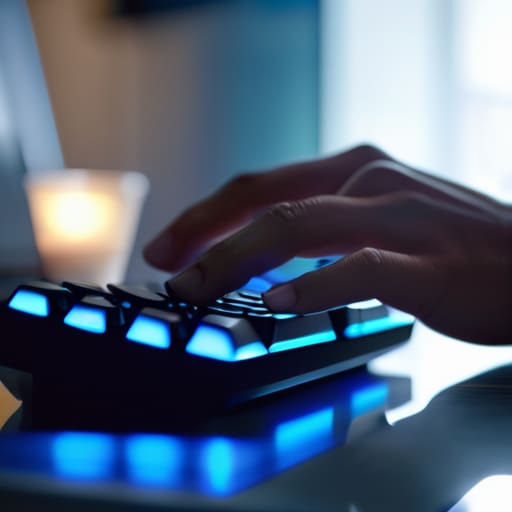
- Check your keyboard backlight settings. It’s a beautiful feature, especially in a dim coffee shop, but those little glowing keys are sneaky little energy vampires that can drain your juice faster than you’d think.
- Take a look at your Wi-Fi and Bluetooth habits. If you’re working offline or in a spot with no signal, toggling Airplane Mode is like putting your laptop into a light nap; it stops the device from constantly searching for a connection that isn’t there.
- Be mindful of your browser tabs! Each open tab is like a tiny, invisible engine running in the background. If you’ve got twenty tabs open “just in case,” try using a tab suspender or simply bookmarking them to give your processor a much-needed break.
Small Wins for a Longer Battery Life
Think of your screen brightness as your laptop’s biggest energy hog; dialing it down just a notch is like finding a shortcut on a long commute—it saves a ton of effort with very little friction.
Keep a close eye on those sneaky background apps that act like uninvited guests at a party, draining your resources even when you aren’t actively using them.
Remember that battery management isn’t about perfection, but about making small, intentional adjustments to your digital environment so you can stay productive without constantly hunting for a power outlet.
## The Mindset Shift
“Think of your laptop’s battery not as a ticking clock, but as a finite fuel tank for your creativity; every small tweak you make to your settings is just another way to ensure you don’t run out of gas right when you’re in the middle of your best ideas.”
Jordan Bennett
Piecing Together Your New Workflow
At the end of the day, extending your laptop’s battery life isn’t about one massive overhaul; it’s about the small, intentional tweaks that add up over time. We’ve looked at how dimming your screen can act as a quick win, and how keeping those hungry background apps in check can stop your system from draining energy unnecessarily. Think of these adjustments like tuning an engine—you aren’t changing the machine itself, just making sure every bit of power is being used for what actually matters. By managing your brightness and being a bit more selective with your active processes, you’re essentially reclaiming minutes that used to disappear into thin air.
I know that when life gets hectic, the last thing you want to do is micromanage your settings, but I promise the payoff is worth it. When you stop worrying about whether you’re about to hit that dreaded 5% mark, you free up mental space to actually focus on your work or your creativity. Technology should be a tool that supports your rhythm, not a source of constant anxiety. So, take these little pieces we’ve discussed, slot them into your daily routine, and start building a smoother experience. You’ve got this, and I can’t wait to see how much more effortlessly you thrive once you’ve mastered your digital ecosystem!
Frequently Asked Questions
Is it actually better to let my battery drain to zero occasionally, or should I keep it plugged in more often?
Think of your battery like a marathon runner; you wouldn’t want them sprinting until they collapse every single day! Letting it hit zero is actually pretty stressful for modern lithium-ion cells. I usually recommend the “sweet spot” method: try to keep your charge between 20% and 80%. And while staying plugged in isn’t “bad,” giving it a little wiggle room to discharge occasionally keeps the chemistry happy and your battery life puzzle intact.
Will using a "battery saver" mode actually slow down my laptop enough to notice a difference when I'm working on big projects?
It’s a fair question! Think of battery saver mode like a “low-power” setting on a car; it keeps you moving, but you might lose some pep. For heavy lifting—like video editing or complex coding—you’ll likely notice a slight lag because it throttles your CPU. If you’re on a tight deadline, I’d suggest keeping it off for the heavy tasks and only flipping the switch when you’re just doing light research or emails.
Are there specific types of peripherals, like wireless mice or external hard drives, that are secretly draining my power faster than I realize?
Oh, you’ve hit on a total hidden culprit! Think of your laptop like a backpack; every time you plug something in, you’re adding extra weight. Wireless mice are usually fine, but those high-performance ones with constant RGB lighting are sneaky power hogs. And external hard drives? They’re massive energy consumers because they need constant juice to keep those platters spinning. If you’re on the move, try sticking to cloud storage or lightweight USB sticks instead!