How to Transfer Files Between Your Devices Easily
I remember sitting on my floor at 2:00 AM during my software engineering days, surrounded by a chaotic nest of tangled white cables and three different laptops, feeling like I was losing a wrestling match with my own hardware. I was desperately trying to figure out how to transfer files between devices for a project deadline, only to realize I’d spent forty minutes fighting a proprietary cloud service that refused to sync. It was one of those moments where the “seamless” tech we’re sold feels less like a tool and more like a digital roadblock. We’ve been told that everything is “connected” now, but if that were true, why does moving a simple folder still feel like solving a Rubik’s Cube in the dark?
I’m not here to sell you on a fancy, expensive subscription or a complex software suite that requires a PhD to navigate. Instead, I want to share the straightforward, battle-tested methods I’ve gathered from years of tinkering with automation and optimizing workflows. I’m going to break down the most efficient ways to move your data so you can stop fighting your tech and get back to actually using it. Let’s find the simplest path forward and get your digital life organized, one file at a time.
Table of Contents
Mastering Wireless File Sharing Methods for a Smoother Workflow

If you’re anything like me, the last thing you want to do at the end of a long day is hunt for a tangled mess of cords just to move a few photos. This is where exploring different wireless file sharing methods can feel like a total game-changer for your workflow. I’ve spent years tinkering with different setups, and I’ve found that leveraging tools like AirDrop, Nearby Share, or even specialized messaging apps can turn a clunky process into something that feels almost invisible. It’s about removing the friction so you can get back to what actually matters.
For those of us juggling a mix of hardware, mastering cross-platform file sharing is the real secret sauce. Whether you’re moving a heavy presentation from an Android tablet to a MacBook or just syncing a quick note, relying on cloud storage synchronization keeps everything in harmony without you having to lift a finger. Think of it as building a digital bridge that stays open 24/7; once you set it up, your files are just where you need them to be, whenever inspiration strikes.
The Fastest Way to Move Large Files Without the Stress
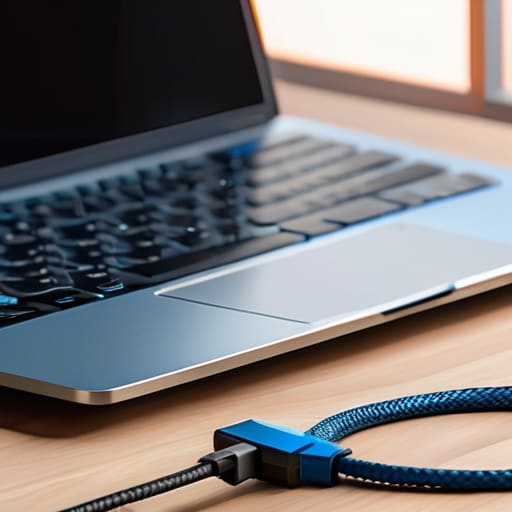
Sometimes, you hit a wall where those nifty wireless tricks just won’t cut it. I remember a project back when I was engineering software where I had to move massive datasets, and trying to do it over Wi-Fi felt like trying to empty a swimming pool with a cocktail straw. When you’re dealing with high-res video files or massive folder directories, the fastest way to move large files is often the most “old school” method: the physical connection.
A reliable USB cable file transfer is still my go-to “emergency” solution. There’s something incredibly satisfying about the stability of a wired connection; it’s predictable, it’s fast, and it doesn’t care if your internet signal is acting up. If you’re transferring data from phone to PC, grabbing a high-speed USB-C cable can save you a massive amount of headache and waiting time. It turns a potentially frustrating afternoon of watching progress bars into a quick, one-and-done task, letting you get back to what actually matters in your day.
My Secret Sauce: 5 Pro-Tips for Frictionless File Moving
- Audit your “digital clutter” before you start. Just like I wouldn’t pack a suitcase with old receipts and crumpled napkins, don’t waste bandwidth moving files you don’t actually need. A quick five-minute purge saves you time and storage space on the other end.
- Match the tool to the task. I see people trying to email a 2GB video file all the time—it’s like trying to fit a king-sized mattress into a mailbox! Use cloud links for big files and quick wireless transfers for single documents. It’s all about using the right lever for the weight you’re lifting.
- Double-check your connection stability. There is nothing more frustrating than a transfer hitting 99% and then crashing because your Wi-Fi hiccuped. If you’re moving something mission-critical, try to stay close to your router or, better yet, plug in via USB.
- Organize your destination folder ahead of time. Don’t just dump everything into your “Downloads” folder and hope for the best. I always create a temporary “Incoming” folder so I can sort things into their proper homes immediately. It keeps the chaos at bay!
- Keep a “Digital Bridge” ready. Set up your preferred ecosystem (like iCloud, Google Drive, or OneDrive) across all your devices before you actually need to move something. Having those accounts synced and ready to go turns a stressful task into a background process that just works.
Quick Wins for Your Digital Workflow
Match your method to the task—use quick wireless sharing for a single photo, but don’t hesitate to grab a physical drive when you’re wrestling with massive video files.
Stop treating file transfers like a chore by automating your most common moves; a little bit of setup today saves you a mountain of clicking tomorrow.
Always keep a “digital backup” mindset; whether you’re moving files to a new laptop or a cloud drive, ensure you have a safety net so a single glitch doesn’t ruin your day.
The Philosophy of Seamless Flow
“Think of your files like the pieces of a puzzle; they don’t mean much if they’re stuck in the wrong box. Moving data between your devices shouldn’t feel like a technical hurdle—it should be a seamless bridge that lets your creativity flow wherever you happen to be sitting.”
Jordan Bennett
Bridging the Digital Gap
At the end of the day, transferring files shouldn’t feel like you’re trying to solve a Rubik’s Cube in the dark. Whether you’ve embraced the convenience of wireless sharing for those quick photo swaps, or you’ve mastered the heavy lifting of external drives and cloud services for your massive project folders, the goal is the same: minimizing friction. We’ve looked at everything from the seamless magic of AirDrop and Nearby Share to the brute force of high-speed cables, and it’s clear that the “best” method is simply the one that fits your current workflow without causing a headache. By picking the right tool for the specific job, you’re not just moving data; you’re reclaiming your mental bandwidth.
I like to think of these tech setups as the small, invisible gears in a much larger machine. When your devices talk to each other effortlessly, your creativity and productivity can finally take center stage instead of being sidelined by technical hiccups. Don’t let a messy digital transfer stall your momentum. Take a moment to audit your most common tasks, set up a system that works for you, and then get back to what actually matters. Life is far too short to spend it waiting for progress bars to finish—go out there and make something amazing!
Frequently Asked Questions
Is it actually safe to use public cloud services for transferring sensitive or private documents?
It’s a valid concern—I used to obsess over this back when I was coding! The short answer? Yes, but with a huge asterisk. Think of public clouds like a high-end gym locker: it’s secure, but if you leave your key lying around, anyone can walk in. To keep your private docs safe, always use end-to-end encryption and a rock-solid password. Don’t just trust the provider; take control of your own digital locks.
What should I do if my devices just won't "see" each other when I'm trying to use AirDrop or Nearby Share?
Ugh, the digital equivalent of a “ghosting” situation! It’s incredibly frustrating when your devices decide to play hard to get right when you need them. First, double-check that Bluetooth and Wi-Fi are actually toggled on for both—it sounds basic, but it’s usually the culprit. Also, make sure your visibility settings aren’t set to “Contacts Only” if you’re trying to connect with someone else. If all else fails, a quick restart usually clears the digital cobwebs!
If I'm moving a massive library of photos or videos, is it better to use a physical hard drive or just upload everything to the cloud?
It’s the ultimate productivity showdown: physical vs. cloud! If you’re staring down a massive library of high-res videos, I’d lean toward a physical hard drive. It’s like a direct highway—no waiting for upload bars to crawl across your screen. However, the cloud is your best friend for peace of mind; if that drive goes missing, your memories are gone. My pro tip? Use the drive for the heavy lifting, then sync the essentials to the cloud.