Inbox Zero: How to Finally Tame Your Email
I still remember sitting in my old cubicle during my engineering days, staring at a screen that felt less like a tool and more like a digital tidal wave. Every time I thought I had a handle on things, a fresh wave of unread notifications would crash down, leaving me paralyzed by a sense of constant, low-grade anxiety. We’ve been sold this idea that inbox zero is some sacred, mystical state achieved only by productivity gurus who spend twelve hours a day color-coding their folders. But let’s be real: for most of us, chasing a perfectly empty inbox feels less like “optimization” and more like a full-time job we never applied for.
I’m not here to sell you on a complex, rigid system that requires a PhD in software architecture to maintain. Instead, I want to share the practical, no-nonsense frameworks I’ve built through years of trial, error, and a lot of tinkering. My goal is to help you treat your email like a puzzle to be solved, rather than a monster to be feared. We’re going to focus on sustainable habits that actually reclaim your mental space, so you can stop managing your inbox and start focusing on the work that actually matters.
Table of Contents
Mastering Effective Inbox Triage to Reclaim Your Day

Think of your inbox like a messy kitchen counter after a big Sunday brunch; you can’t actually start cooking your next meal until you clear away the scraps. This is where effective inbox triage comes into play. Instead of treating every incoming notification like a high-priority emergency, I like to approach it like a sorting game. When a new message hits, you have exactly three choices: delete it, do it (if it takes under two minutes), or delegate/schedule it. By making these snap decisions immediately, you stop the endless cycle of “reading and then coming back later,” which is really just a fancy way of procrastinating.
Once you’ve mastered that initial sorting, you can start layering in some smarter email organization systems to keep the chaos at bay. I’m a huge fan of using folders or labels not just as storage, but as action cues—think “To Do,” “Awaiting Reply,” and “Reference.” If you’re feeling tech-savvy, you can even experiment with some basic workflow automation for email to automatically shunt newsletters into a separate folder. This keeps your primary view clean and helps in reducing digital distractions so you can actually focus on the deep work that moves the needle.
Smart Email Decluttering Techniques for a Clearer Mind
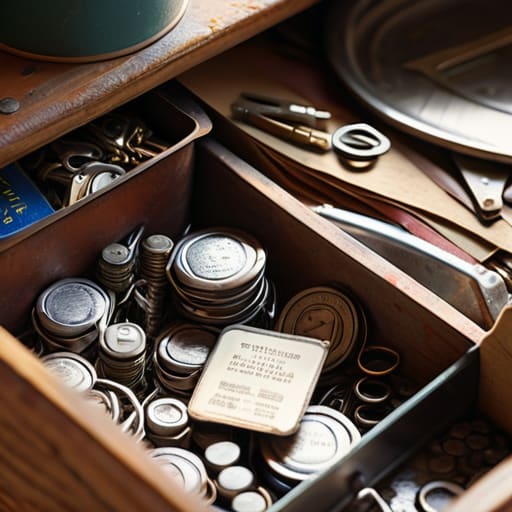
Think of your inbox like a physical junk drawer. You know the one—the place where old batteries, takeout menus, and mystery keys go to die. If you don’t periodically clear it out, you’ll never actually find that one thing you’re looking for. The same logic applies to your digital life. To truly master email decluttering techniques, you have to stop treating every notification like an emergency. I like to start by aggressively unsubscribing from anything that doesn’t add immediate value to my life. If you haven’t opened a newsletter in three weeks, it’s time to let it go.
Once the noise dies down, it’s time to build a system that actually works for you, rather than against you. Instead of manually moving every single message, I’m a huge fan of using workflow automation for email to do the heavy lifting. Setting up simple filters to automatically shunt receipts, social media notifications, or CC’d threads into specific folders can be a total game-changer. By automating these repetitive micro-tasks, you aren’t just cleaning up a screen; you are actively reducing digital distractions so your brain can finally stay in the flow state where the real magic happens.
My Secret Sauce: 5 Tiny Tweaks for a Massive Inbox Win
- Stop treating your inbox like a to-do list. I used to make that mistake constantly, but now I treat email like a transit station: it’s just a place where things pass through. If an email requires more than two minutes of work, move it to a dedicated task manager and archive the thread. Your inbox shouldn’t be your brain’s storage unit!
- Embrace the “Unsubscribe” spree. Think of it as digital spring cleaning. Every time a newsletter hits your inbox and you realize you haven’t opened it in a month, don’t just delete it—hit that unsubscribe button. It’s much easier to stop the flood at the source than to try and bail out the boat once you’re already sinking.
- Use “Search, Don’t Sort” logic. I spent way too many years building elaborate, nested folder systems that eventually became a digital graveyard where emails went to die. Instead, rely on powerful search queries and a few broad labels. It saves you so much mental energy when you aren’t obsessing over whether a receipt belongs in “Finance” or “Travel.”
- Set up “Batch Processing” windows. Constant notifications are the ultimate productivity killers—they’re like little interruptions that shatter your focus. Instead of reacting to every ping, try checking your mail at set intervals, like once in the morning and once before you wrap up for the day. It keeps you in the driver’s seat.
- Automate the boring stuff with filters. This is where my software engineer brain gets really excited! Set up simple rules to automatically move receipts, notifications, or CC’d threads into specific folders. If you don’t need to see it immediately, it shouldn’t be cluttering up your primary view. Let the machines do the heavy lifting for you.
The Quick Wins: Your Inbox Cheat Sheet
Treat your inbox like a transit station, not a storage unit; if an email doesn’t require immediate action, move it out of your sight so it stops draining your mental battery.
Batch your email time to avoid the “constant ping” trap; checking your messages in focused sprints rather than reacting to every notification keeps you in the driver’s seat of your day.
Don’t be afraid to hit that unsubscribe button liberally—if a newsletter hasn’t added value to your life in the last month, it’s just digital clutter you don’t need.
Reframing the Goal
“Inbox Zero isn’t about having a perfectly empty screen; it’s about making sure your digital clutter isn’t the thing standing between you and the work that actually makes you feel alive.”
Jordan Bennett
Final Pieces of the Puzzle

At the end of the day, reaching inbox zero isn’t about being a perfect digital minimalist or spending your entire afternoon deleting newsletters. It’s really about the systems we’ve discussed: mastering that quick triage process, using smart decluttering techniques to prune the excess, and most importantly, refusing to let your inbox dictate your priorities. When you treat your email as a tool rather than a mounting to-do list, you stop reacting to everyone else’s demands and start acting on your own. Remember, the goal is to reclaim your mental bandwidth so you can spend it on the work—and the people—that actually move the needle in your life.
I know it can feel overwhelming when you’re staring at a mountain of unread messages, but try to view it as a series of small, manageable steps rather than one giant obstacle. Think of it like one of my DIY automation projects; you don’t build the whole thing at once, you just tinker with one gear at a time until the whole machine runs smoothly. Be patient with yourself as you build these new habits. You aren’t just cleaning out a digital folder; you are designing a life with more intention. Now, take a deep breath, pick one small task, and let’s get to work!
Frequently Asked Questions
Is it actually realistic to maintain an empty inbox every single day, or is that just a recipe for burnout?
Honestly? If you’re chasing a literal zero every single day, you’re probably setting yourself up for a burnout loop. To me, Inbox Zero shouldn’t be a rigid rule, but a way to manage mental load. Think of it like tidying a kitchen: you don’t need every single dish put away perfectly every hour, but you don’t want a mountain of crusty pans blocking your workspace either. Aim for “functional clarity” instead of perfection.
How do I handle those "must-read" newsletters and industry updates without them cluttering up my primary workspace?
Think of your inbox like a physical desk: you wouldn’t pile every magazine and catalog right on top of your keyboard, right? I do the exact same thing with my digital workspace! I use a “Read Later” filter or a dedicated folder. Set up a simple rule to skip the inbox and land those newsletters in a specific “Learning” folder. This keeps your primary view clean while letting you dive into that knowledge on your terms.
What should I do with old emails that I'm not ready to delete but definitely don't need sitting in my face right now?
Think of your inbox like a messy kitchen counter—you don’t have to throw away the spices you use once a month, you just need to put them in the pantry. I love the “Archive” button for this exact reason. Move those emails out of your sight and into an archive folder. They aren’t gone; they’re just tucked away safely so you can find them via search when you actually need them. Out of sight, but never lost!